


Here's what this post covers
One of the most common questions I get asked is what is the difference between Showit and WordPress.
First I need to start off by saying Showit actually uses WordPress for the blog pages. This is an incredibly powerful feature that actually helped me make the decision to stop making fully WordPress websites.
In essence, Showit is a visual website builder that allows you to create the look of your website and blog by dragging shapes, images, and text around without seeing any code.
Is Showit better than WordPress?
Yes! Showit is absolutely better than WordPress. However, Showit does use WordPress for all of the blog pages. The reason using a Showit website is better than a full WordPress website is that Showit allows you to visually create a beautiful website without having to mess with any code. Its 100% a visual editor.
I’ve build many full WordPress websites and once I found Showit, I left WordPress behind, happily!
What is Showit
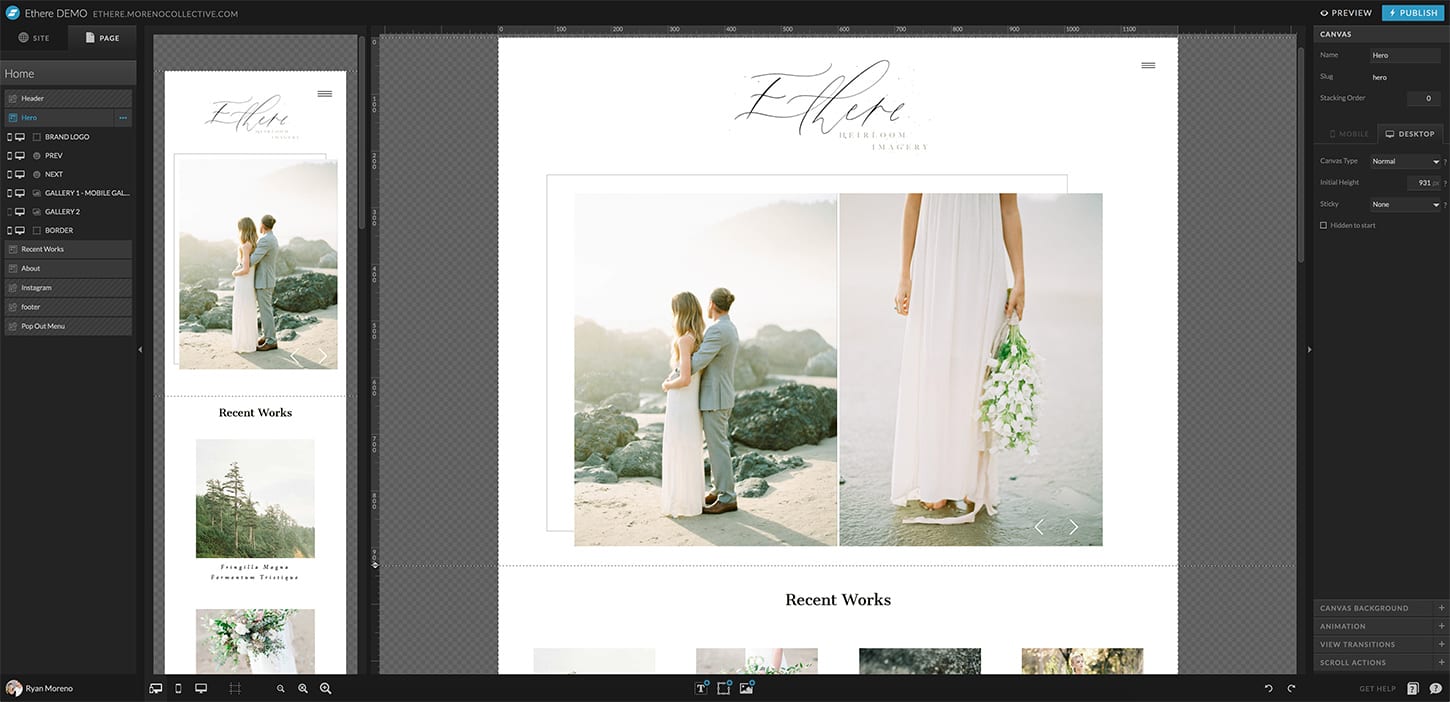
Showit is truly the best of both worlds. You get an incredibly easy drag-and-drop editor paired with the power of WordPress behind your blog.
Showit has the best website templates, pre-designed and ready for you to launch a website in one day!
Let’s take a look at some of Showit’s features.
Showit SEO
We’re starting the list of Showit features off with what I believe is one of the most important website builder factors. SEO.
Does Showit have good SEO?
Yes, and that includes great page load time even for sites with a lot of images (I’m talking to you, photographers!).
With just a few clicks, you can edit the on-page SEO for every Showit page.
You can edit the SEO title, meta description, keywords, and share images for each page, along with the slugs (permalinks) and image alt-tags.
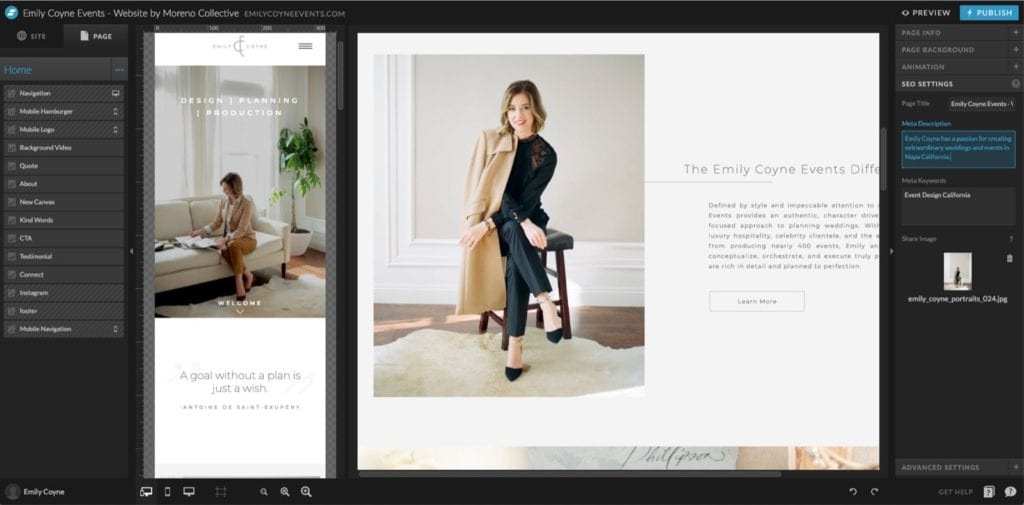
And since Showit uses WordPress to power your blog, you get access to powerful WordPress SEO plugins like Yoast.
Easy Drag and Drop Website Editor
I’ve used a lot of drag and drop editors, many of which I would hardly call drag and drop. Showit is beyond a typical “drag and drop” website editor.
Typically with a drag and drop website editor, you’re working with pre-built, pre-designed “blocks” that you would then place your content in.
WordPress has many themes and plugins that allow you to do this, including the Divi Theme.
The problem with these drag and drop themes is that most times, the out-of-the-box style is not what you’re looking for. They do have “module” styling that you can apply, but you’re still limited in moving things around unless you know CSS.
Showit, on the other hand, is not a “block” style website editor.
With Showit, you create each element how you imagined it and place it exactly where you want it.
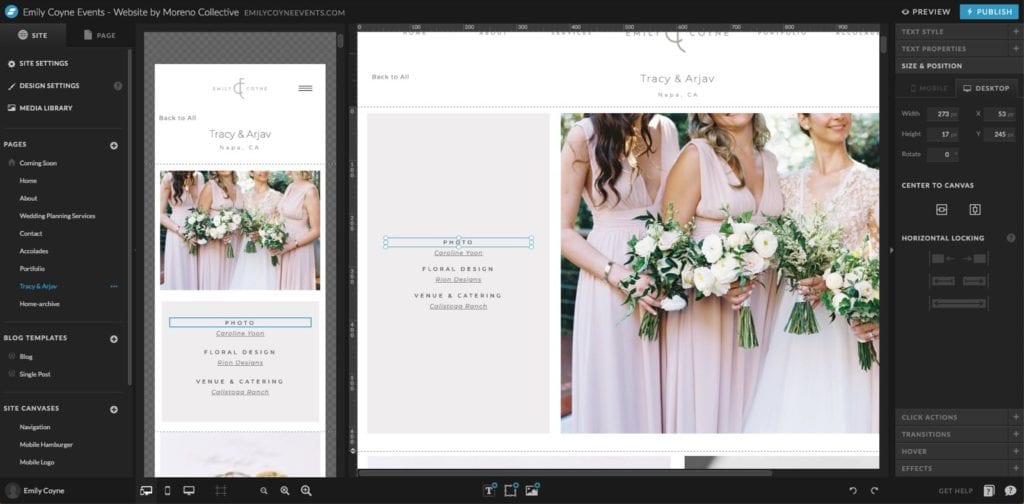
This gives you the ability to correct and adjust the spacing between every element, pixel by pixel.
Side by Side Editor
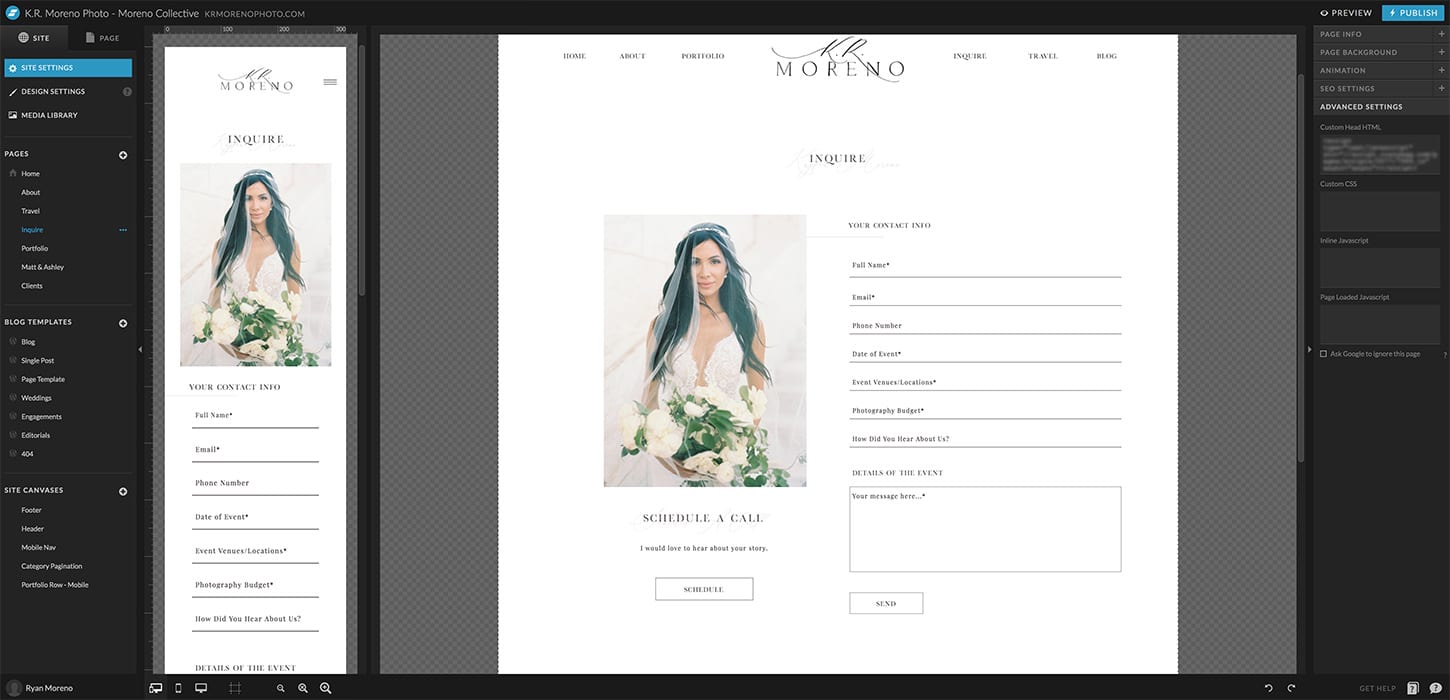
One of Showit’s best features is the side by side, desktop and mobile editor. This allows you to visually edit any page on mobile and desktop to create the perfect user experience for both.
Simplifying and rearranging the mobile version and not affecting the look of the desktop version is a huge benefit.
A lot of other block style website editors don’t allow you to edit the desktop and mobile versions separately, which can harm your user experience which in turn hugely affects your site’s SEO.
Styling in Showit
Every element has a range of styling options to choose from. Let’s take a look at a few:
Text
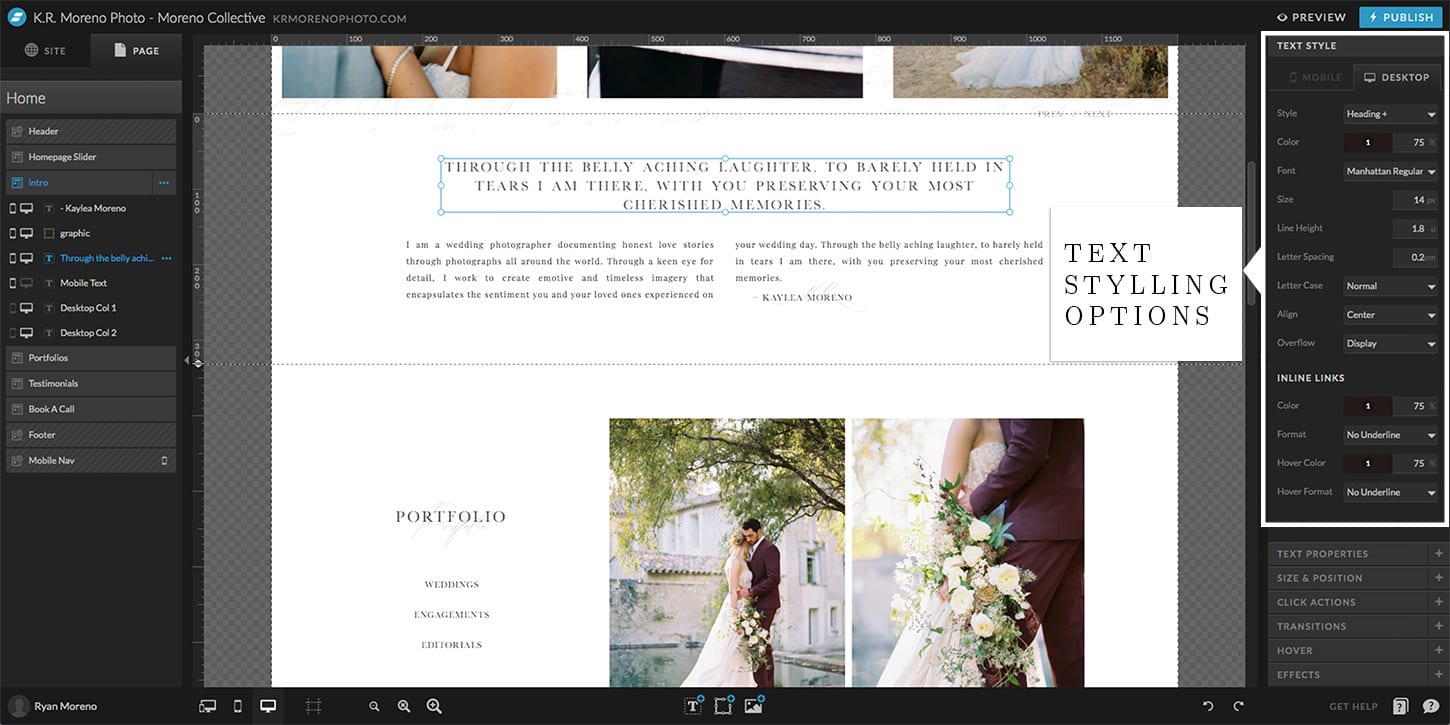
Every text box you place on your Showit website has a range of styling options to choose from including color, opacity, font, size, line height, letter case, alignment, and inline link styles.
All Google Fonts are already pre-installed and you can upload any custom font you wish.
Images
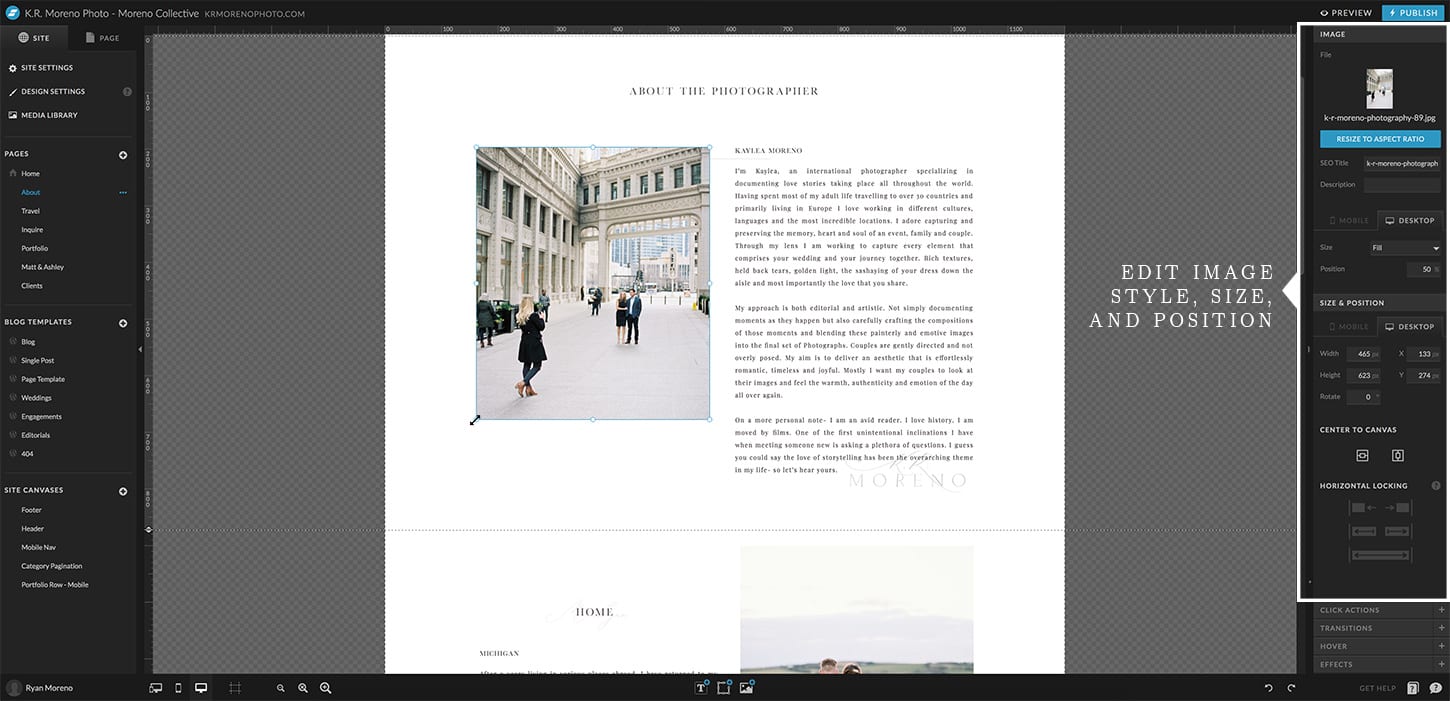
Images are easily resized, cropped, positioned, linked, and more. Just click and drag the image where you want it to be. It’s that simple.
Showit automatically optimizes your images so you don’t have to worry about large images slowing down your website.
Galleries/Sliders
Creating galleries and sliders has never been easier. Seriously.
I’ve used a lot of “Carousel” plugins and NONE compare to Showit’s gallery feature.
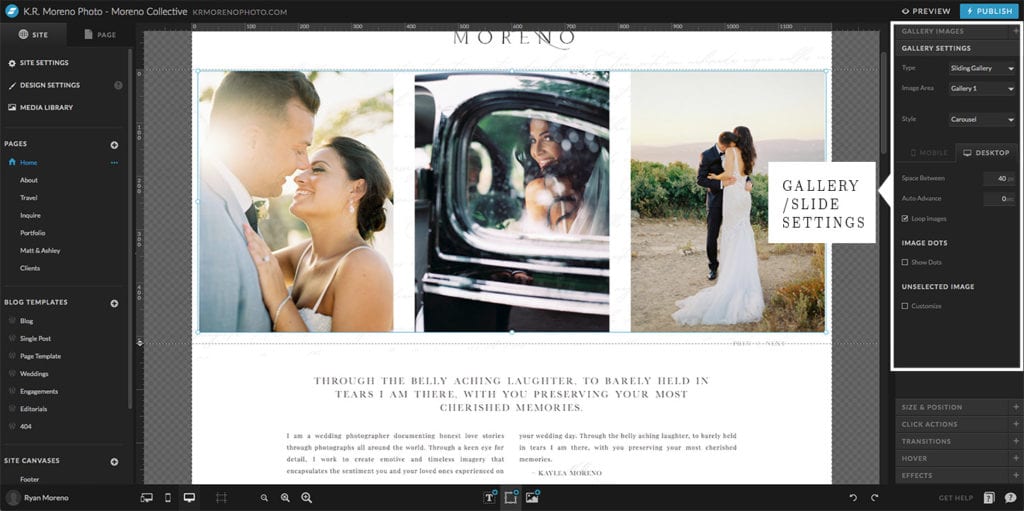
Here’s how simple it is. Click to create a gallery, add images to the gallery, set the gallery settings you want, resize it to perfectly fit your website, and you’re done
Gallery/slider options include:
- Gallery Styles (Sliding, Tiled, Single image)
- Custom space between images
- Auto advance custom settings
- Show dots – with dot styling
- Fixed width
- Custom width
- Full screen/window height
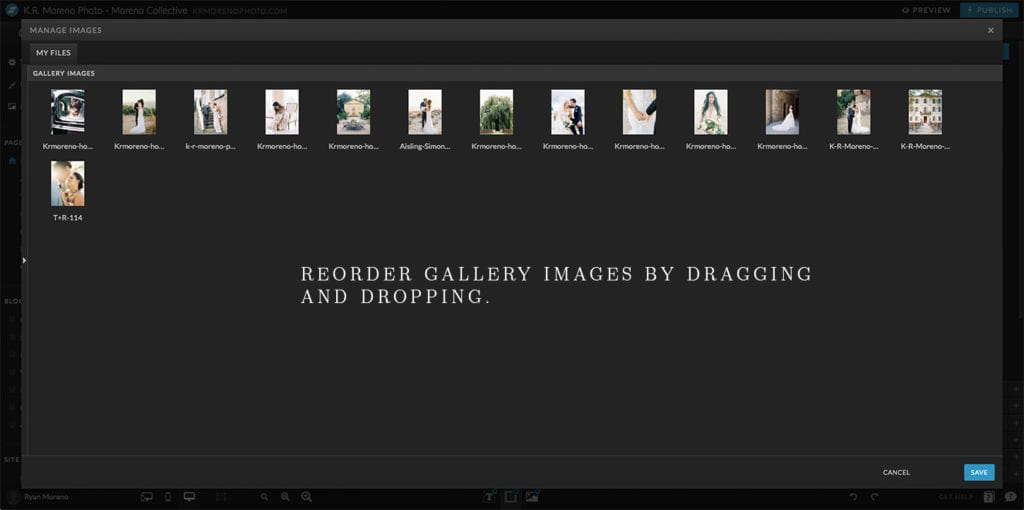
- drag and drop slide order
- and more
Rectangles (Shapes)
Rectangles are easily customizable to create stunning accents, lines, borders, buttons, backgrounds and more.
Every shape starts out as a rectangle but can be customized with styles including rounded corners, opacity, color, width, height, and position to go beyond just a rectangle.
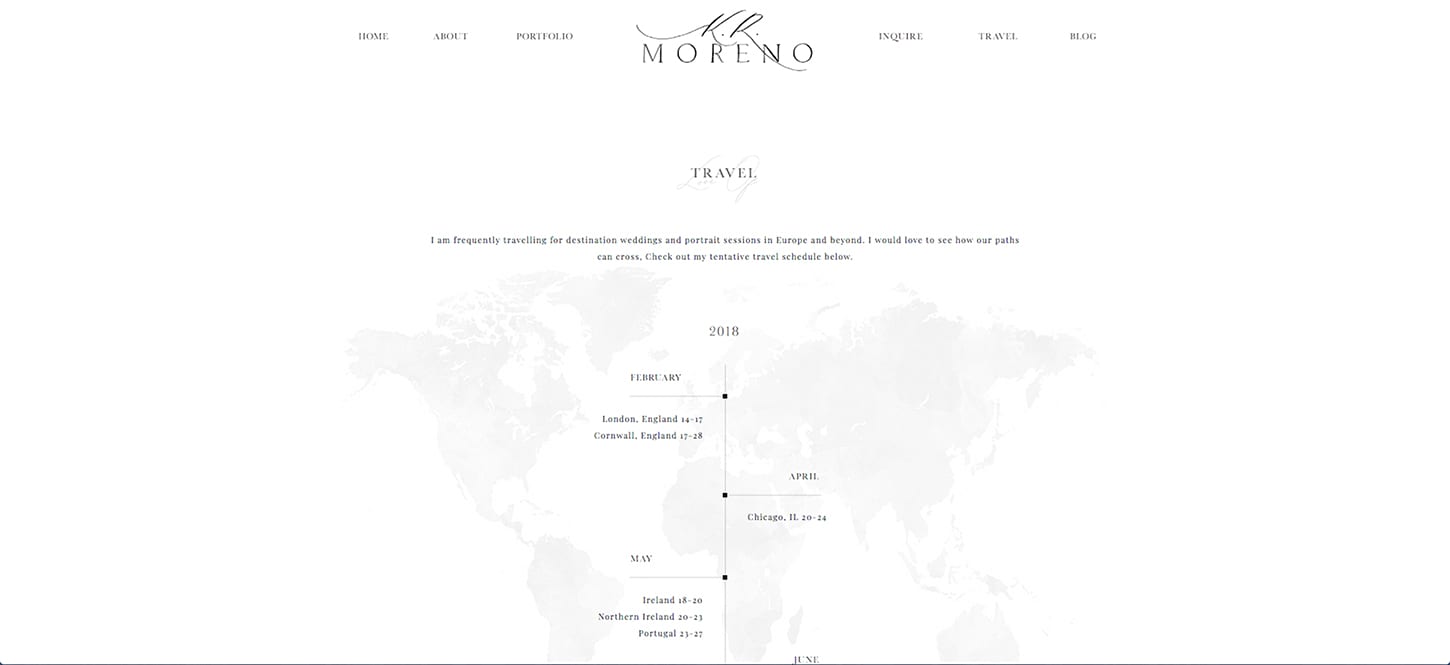
Check out the travel page I made for K.R. Moreno using only text boxes, rectangles, and an image.
Icons
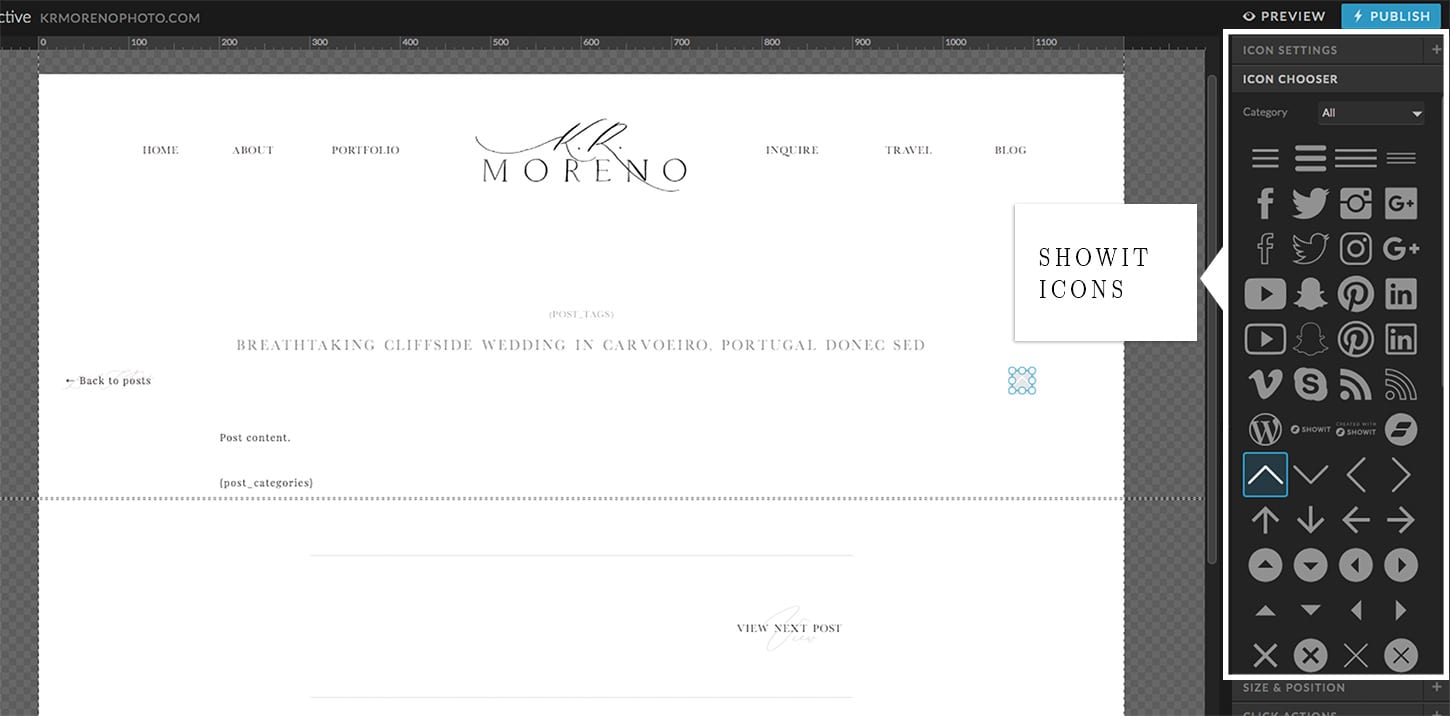
Showit has a range of Icons free to choose from with the ability to add your own custom vector-based Icons using SVG.
Videos
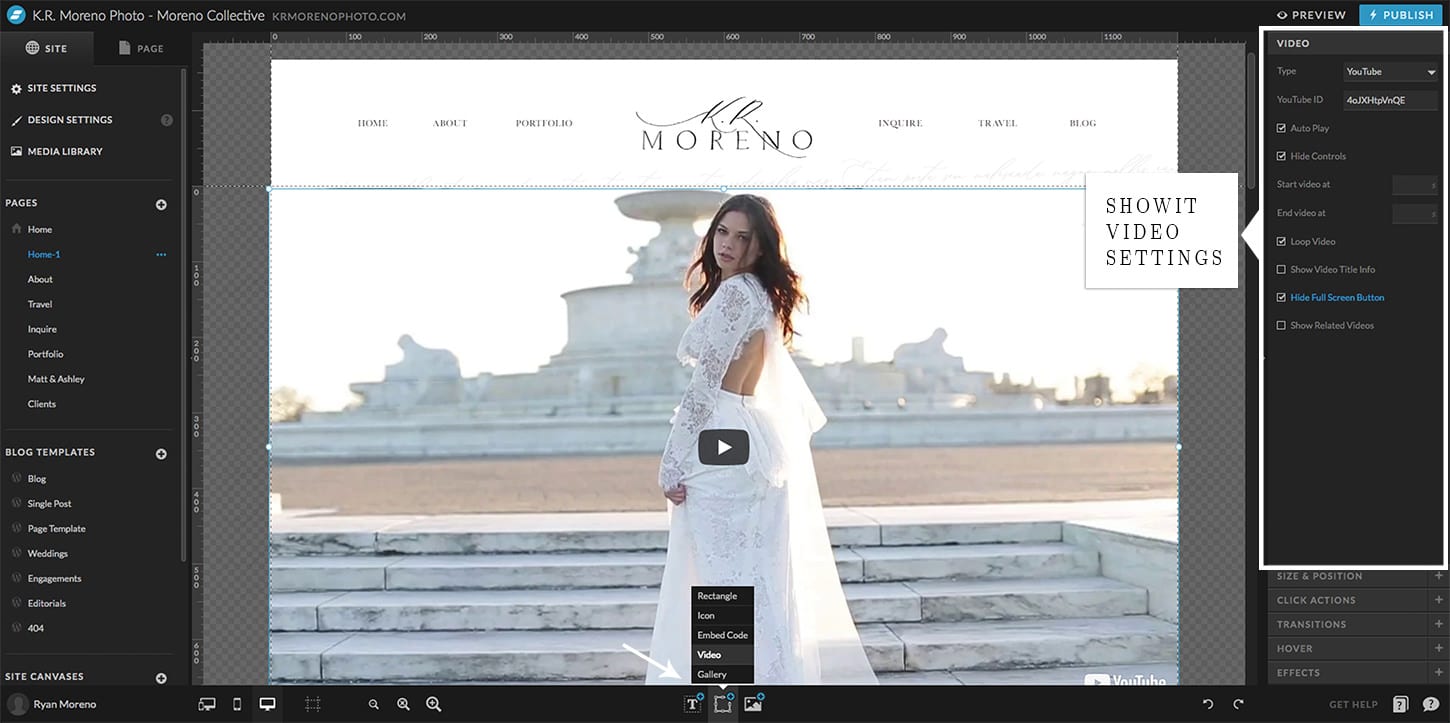
You can add videos to your Showit website by selecting “Video” and adding the Youtube or Vimeo link.
Showit video settings include:
- Autoplay
- loop
- Start/end video times
- Show/hide titles
- Show/hide controls
- Show video title info
- Hide full-screen button
- Hide/show related videos
- Show byline (Vimeo)
- Show Portrait (Vimeo)
Embed Code
One of my favorite features is the ability to embed code and add custom HTML/CSS/JavaScript. This can get advance, but the fact that Showit has this feature is really nice.
You’re able to add and integrate third-party features like chat boxes, iframes, pixel tags, meta tags, and more.
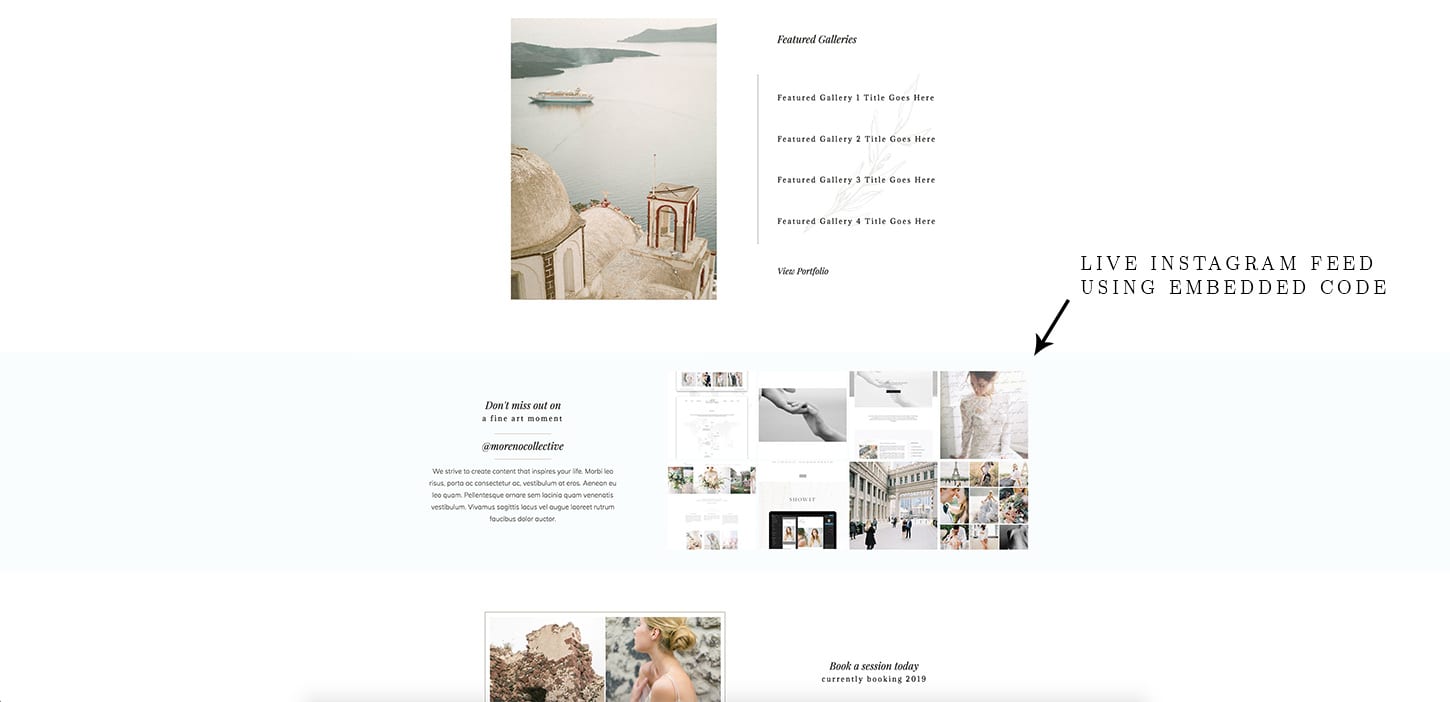
One of the simplest things you can do with Showit’s embed code box is to have a live Instagram feed on your website using SnapWidget!
Update: Showit now has its own Social Grid feature that allows you to seamlessly add your Instagram feed and design the look and feel with ease. Here’s how to add your Instagram feed to your Showit website.
Click Actions
Basically, you can have any shape, icon, text box or image be clickable to any URL, email address, phone number, or page on your website.
You can also set actions like ‘back to top’, advance your gallery/slider to the right or left, or hide/show a section (canvas) on your website.
Hover and Transition Effects
Any element can decrease and increase in opacity upon hover. Text can be underlined and change font, opacity, color, size, and letter spacing all on hover.
Elements can transition in through a fade, slide, bounce, rotation, zoom, flip, roll, etc.
What is WordPress
WordPress is a CMS that allows you to activate pre-designed themes to style your website.
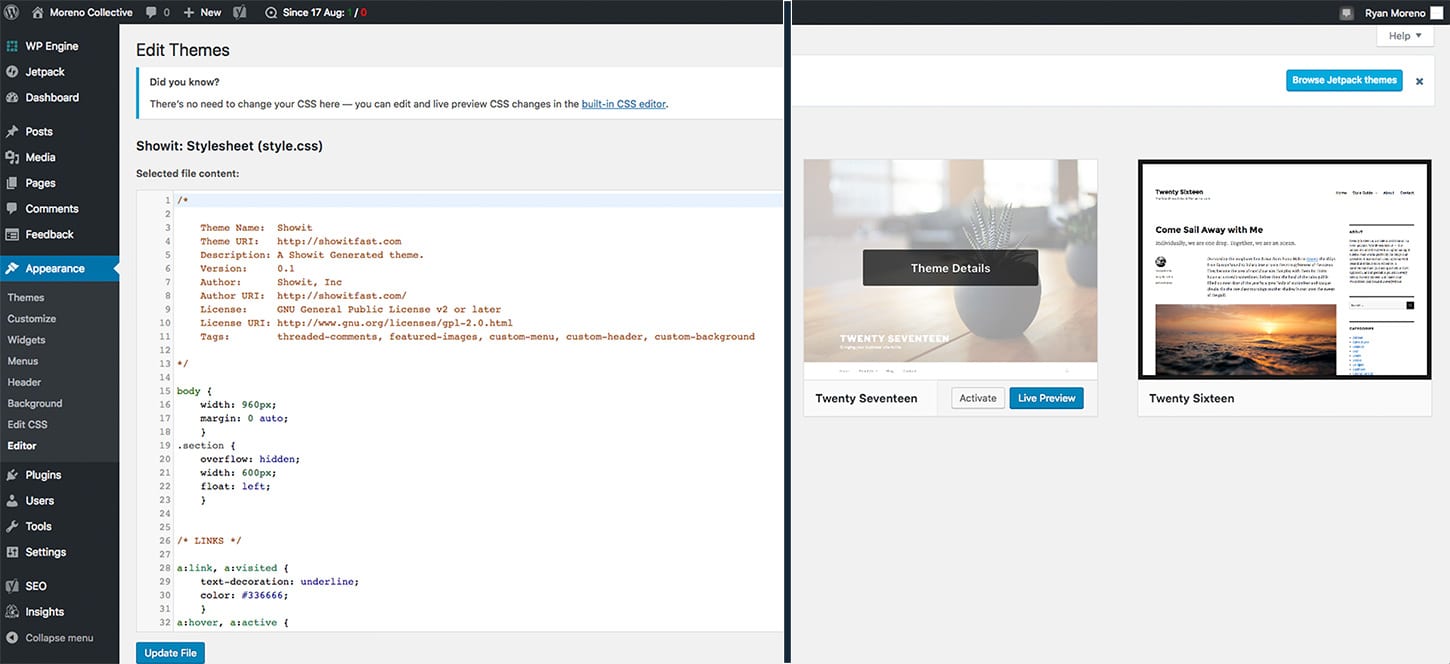
The problem is to update WordPress websites, you’ll need to know some CSS, HTML and in many cases, PHP and JavaScript. Most photographers I know don’t want to learn CSS or any other coding language to make simple edits to their website.
Also, It’s not often you’ll find a WordPress theme that is perfectly designed for your brand.
That’s why using a website platform like Showit is key to creating online success in your business.
As creative professionals and entrepreneurs, we need to be nimble enough to make adjustments to our own websites… on the fly.
This is the sole reason I dropped making full WordPress websites and now primarily design in Showit.
How does Showit Use WordPress
It’s actually quite simple.
You edit the look of your blog’s ‘post list page’ and ‘single post page’ in Showit just like you would any other Showit page.
Then, you add text properties to the text boxes, like post title, post date, page content, featured image, and so on.
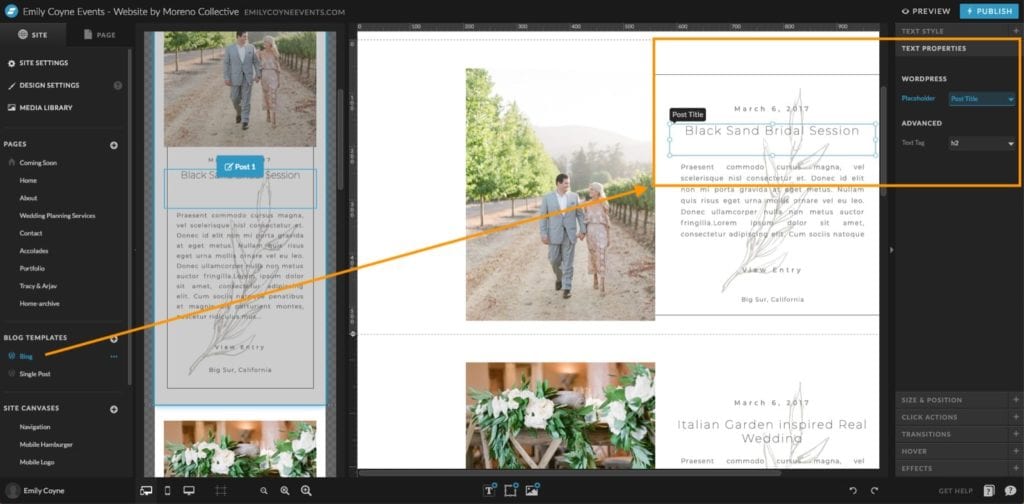
Showit then works their magic and converts your design into a dynamic WordPress blog.
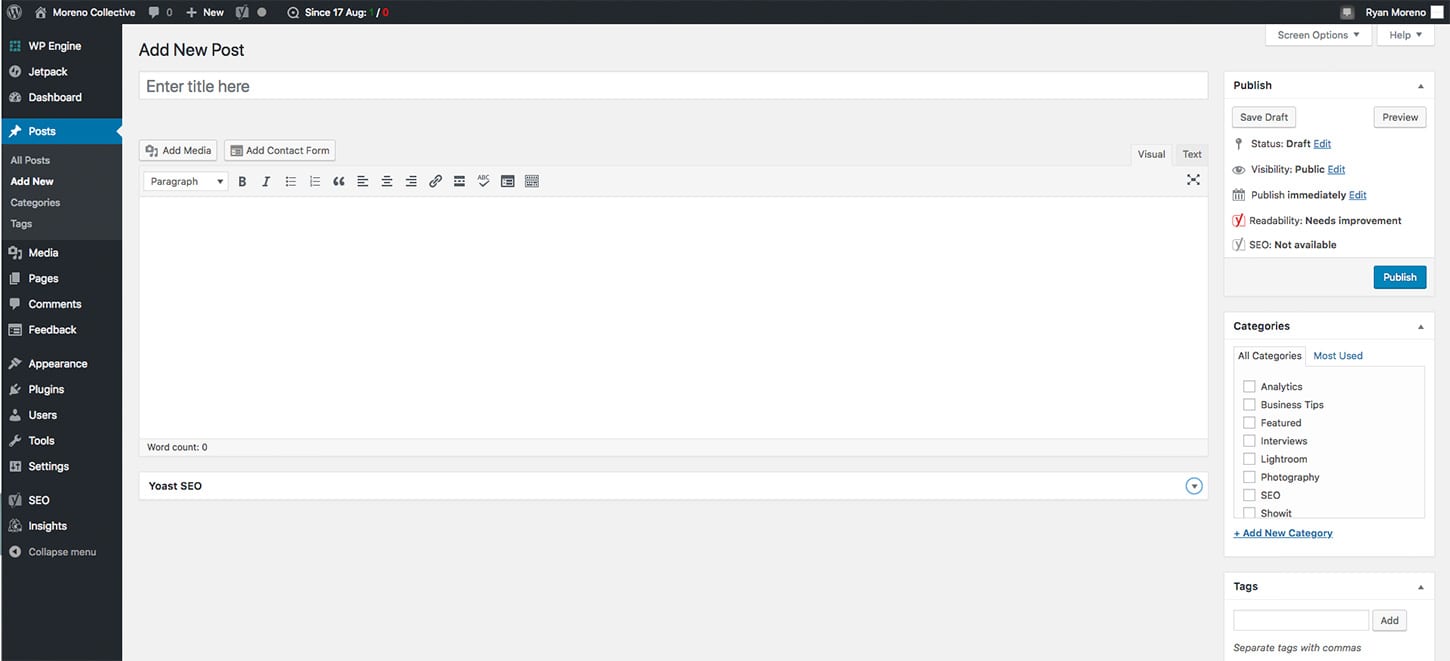
To create a post, you simply log in to your WordPress account, click on add a post, add your post title, text, and images and click publish!
Showit Pricing
Showit has 3 tiers that you can choose from which all include the Showit website builder and hosting.
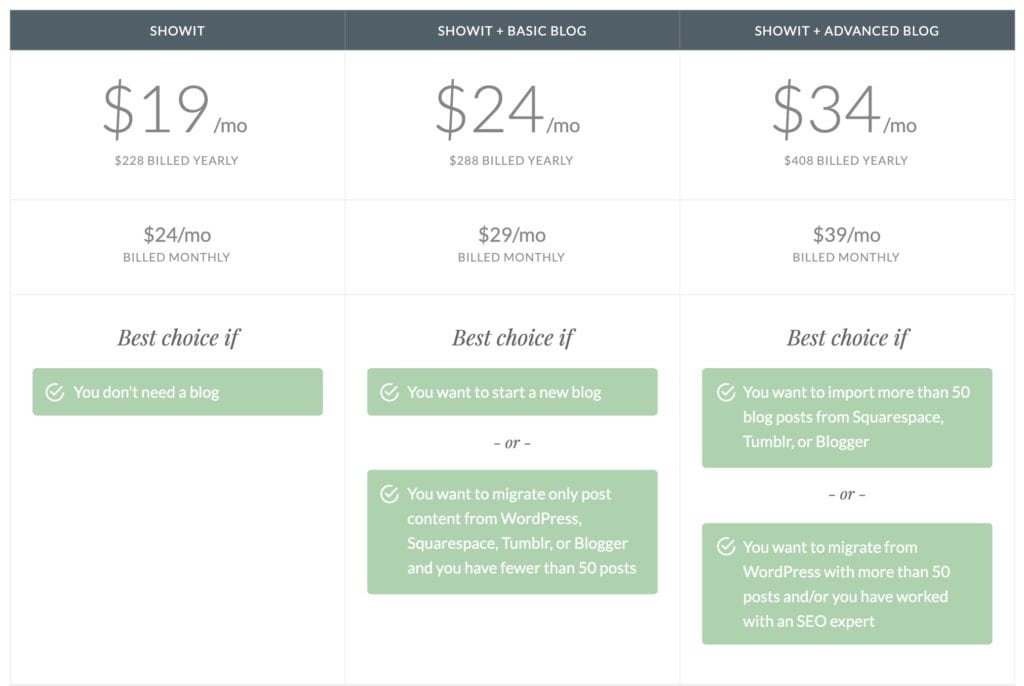
Now before you say, “Hey, that’s expensive!”, let’s evaluate what you get with Showit vs WordPress (or Squarespace).
With a standard WordPress website, you have to pay for hosting which at the cheapest is $10 per month. But with $10 per month hosting, you will be sharing a server with other websites that hog resources.
Your hosting plays a huge role in website speed, and Showit hosting is awesome. Websites load fast and are totally secure which is great for your SEO.
With Showit, you also have the ability to update your website on the fly. Making your life easier.
Showit Courses
If you’re looking to learn more about Showit SEO via a course, check out my Showit SEO Course!
Showit has s ton of great resources on their support site. They also have an amazing Facebook Group where you can ask questions and get help.
And if you’re into DIY SEO for Showit, check out Tonic Site Shop where I create free SEO content for Showit users!
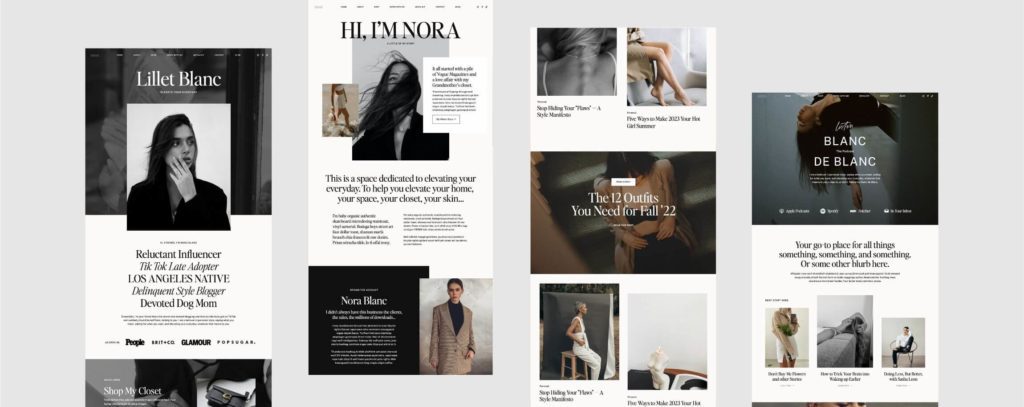
Showit templates
There are a ton of options when it comes to Showit website templates. My friends over at Tonic Site Shop have some of the best Showit templates on the market!
Blogging in Showit
Blogging in Showit is easy. Once you have your new Showit website ready to launch, the Showit support team will take care of taking all of your current WordPress blog posts, including images, and transfer them to your new Showit WordPress blog.
Blogging will be the same as before, you’ll just have a much better-looking website!
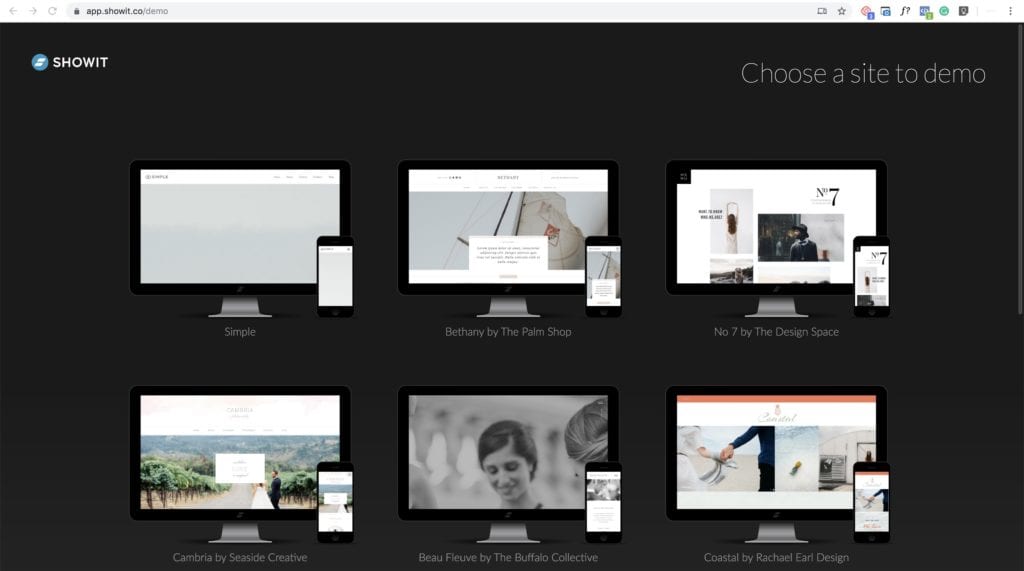
Showit Demo
If you’re interested in playing around with Showit’s website builder you can visit https://app.showit.co/demo
Conclusion
Choosing Showit is a great choice for any wedding photographer or wedding industry professional.
It gives you the ability to be flexible with your design and make edits and updates to your website easy.
You’re not stuck with one content block style or theme. If you can think of the design, chances are you can create it.
Showit has amazing live chat support with their customer support team to help you with any issues you run into.
Sign up for Showit here.


Great Post!
Thank you!